Turn on AI — your key, your relay
Bring your own Anthropic, OpenAI, or OpenRouter key. AI runs in your browser, through your proxy — our servers never see a word.
Most apps bolt AI on by shipping your data to their servers. save brain power can’t — the server only ever holds ciphertext — so AI works the only way it honestly can: your browser decrypts, calls your provider with your key, through a relay you control. Setting that up is three short steps, all of them part of onboarding (and all editable later in Settings).
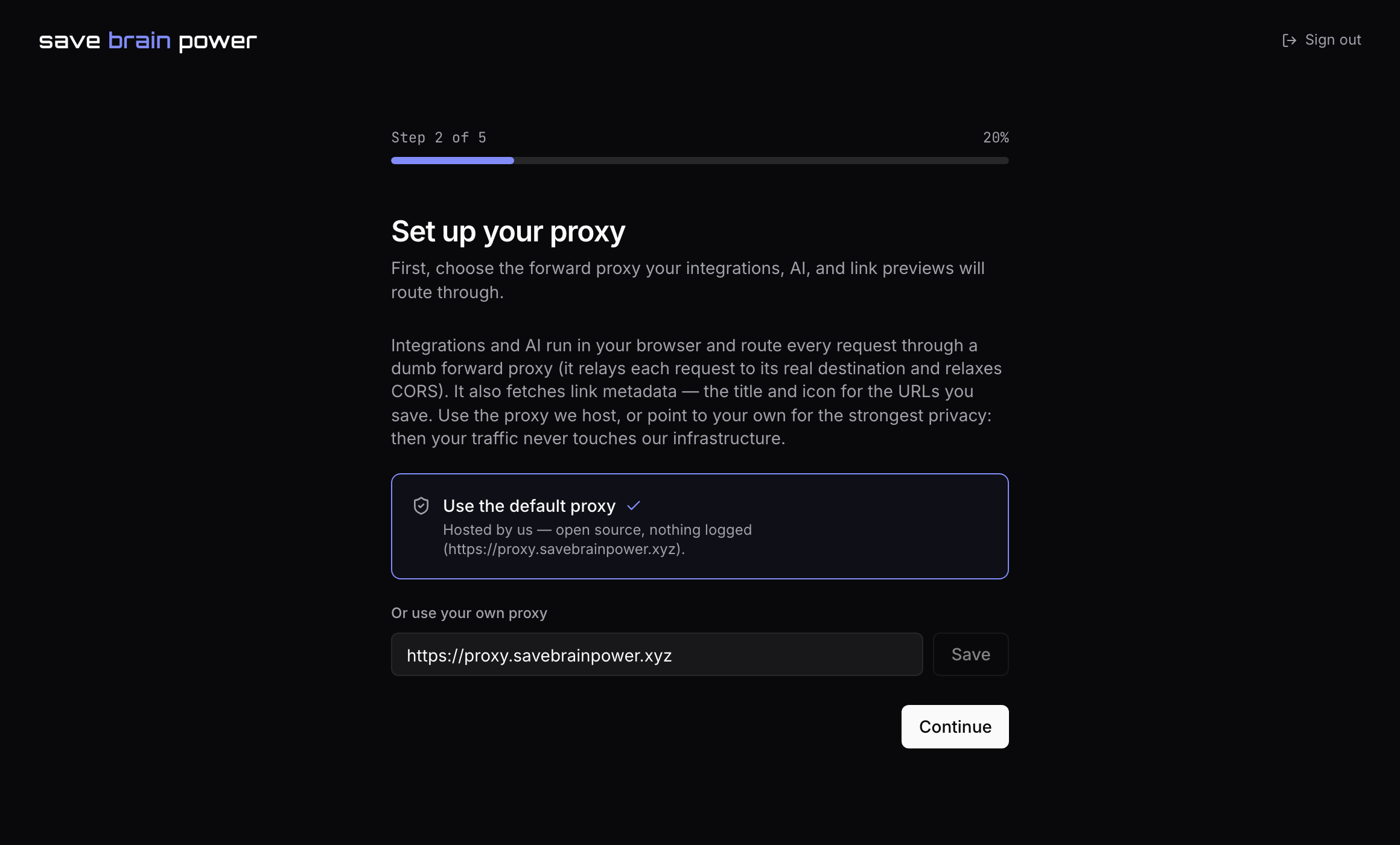
1. Choose your proxy
Browsers can’t call AI providers directly (CORS), so requests route through a dumb forward proxy. The default proxy never logs anything — the exact code it runs is public so you can audit it — or you can deploy the same worker to your own Cloudflare account and trust no one at all.
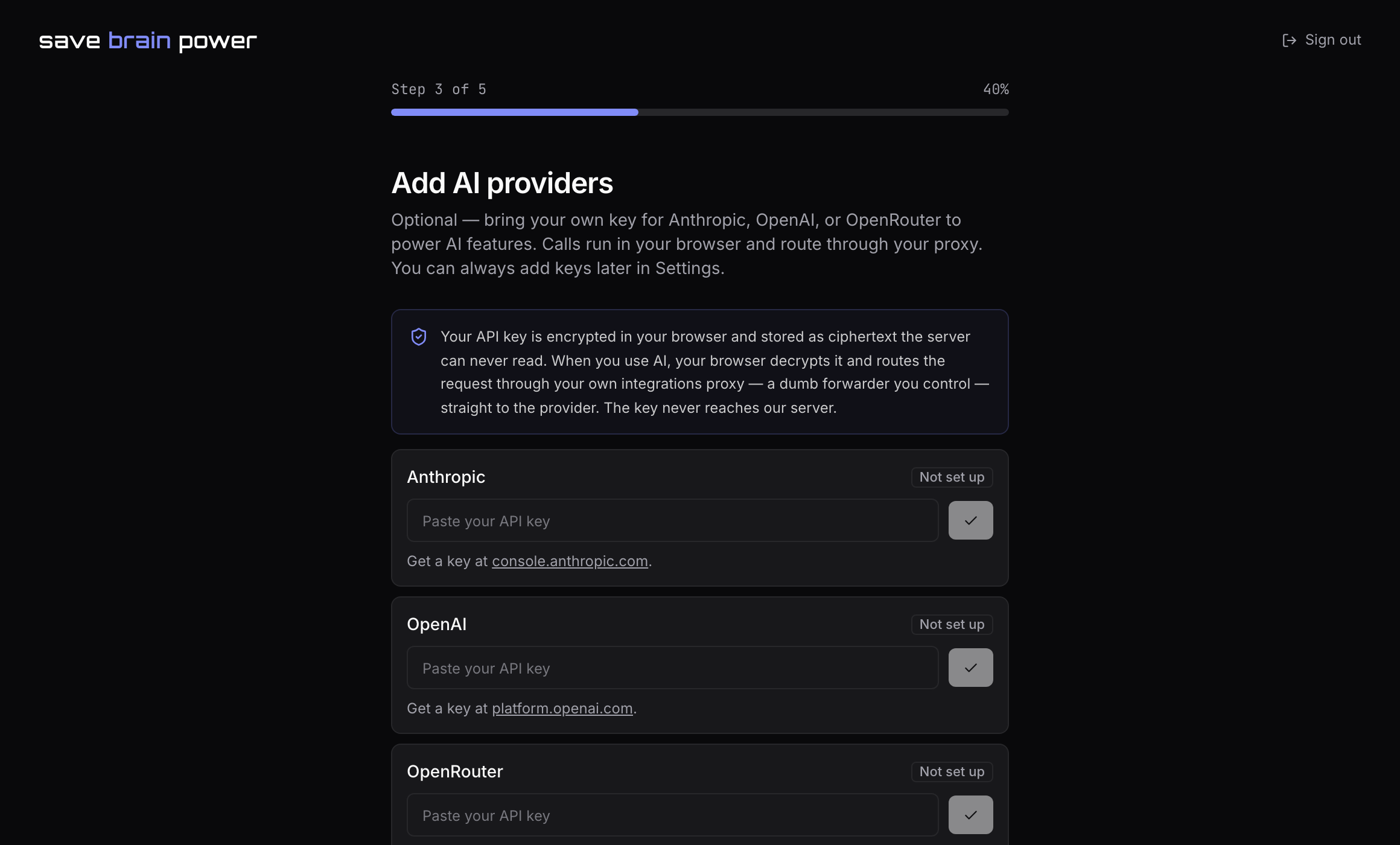
2. Add a provider key
Paste an API key for Anthropic, OpenAI, or OpenRouter — whichever you already pay for. The key is validated with a real call from your browser, stored encrypted like your notes, and used only client-side. Add more than one and pick models per feature.
What this means for cost: there’s no AI markup. You pay your provider’s actual token prices, and AI → Monitoring shows you exactly what each feature call used.
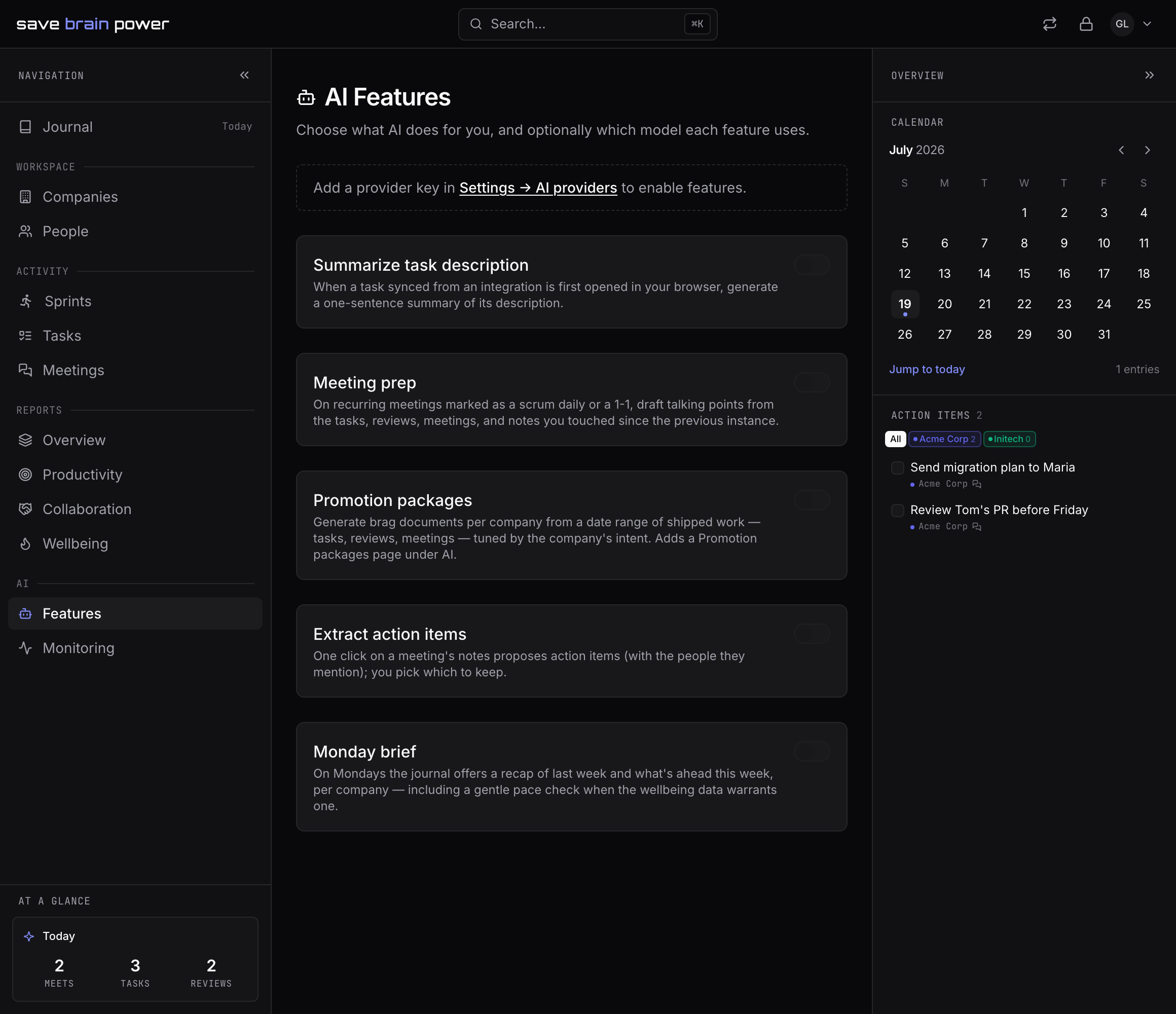
3. Toggle features on your terms
AI → Features lists every AI capability — Meeting prep, Monday brief, Summarize task description, Extract action items, Promotion packages — each with its own switch and a choice of which model it runs on. Off means off: a disabled feature makes zero calls. Start with everything on the cheapest solid model; upgrade the features you end up loving.
Now put it to work: walk into every meeting prepared.