Create your account and set up encryption
Sign in, choose the passphrase that encrypts everything you'll ever write, and save the one recovery code that can bring it back.
Everything in save brain power is encrypted in your browser before it leaves your device — so the very first thing the app asks of you isn’t a profile or a credit card, it’s a passphrase. This guide walks you through the two minutes between “Open the app” and your first journal day.
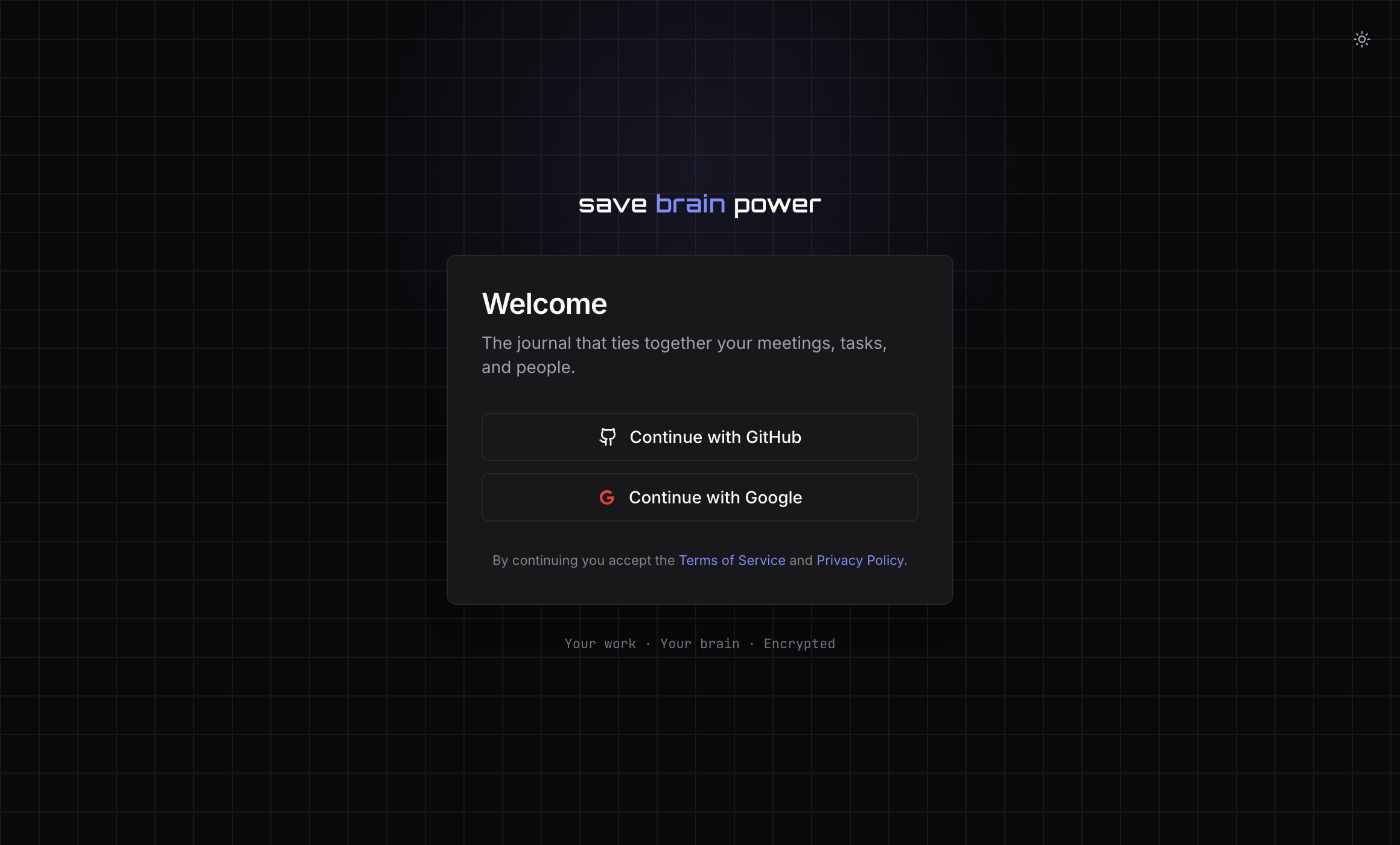
1. Sign in with GitHub or Google
Head to app.savebrainpower.xyz and pick Continue with GitHub or Continue with Google. There’s no password to invent — your identity provider handles sign-in, and neither of them ever sees what you write.
2. Choose your passphrase
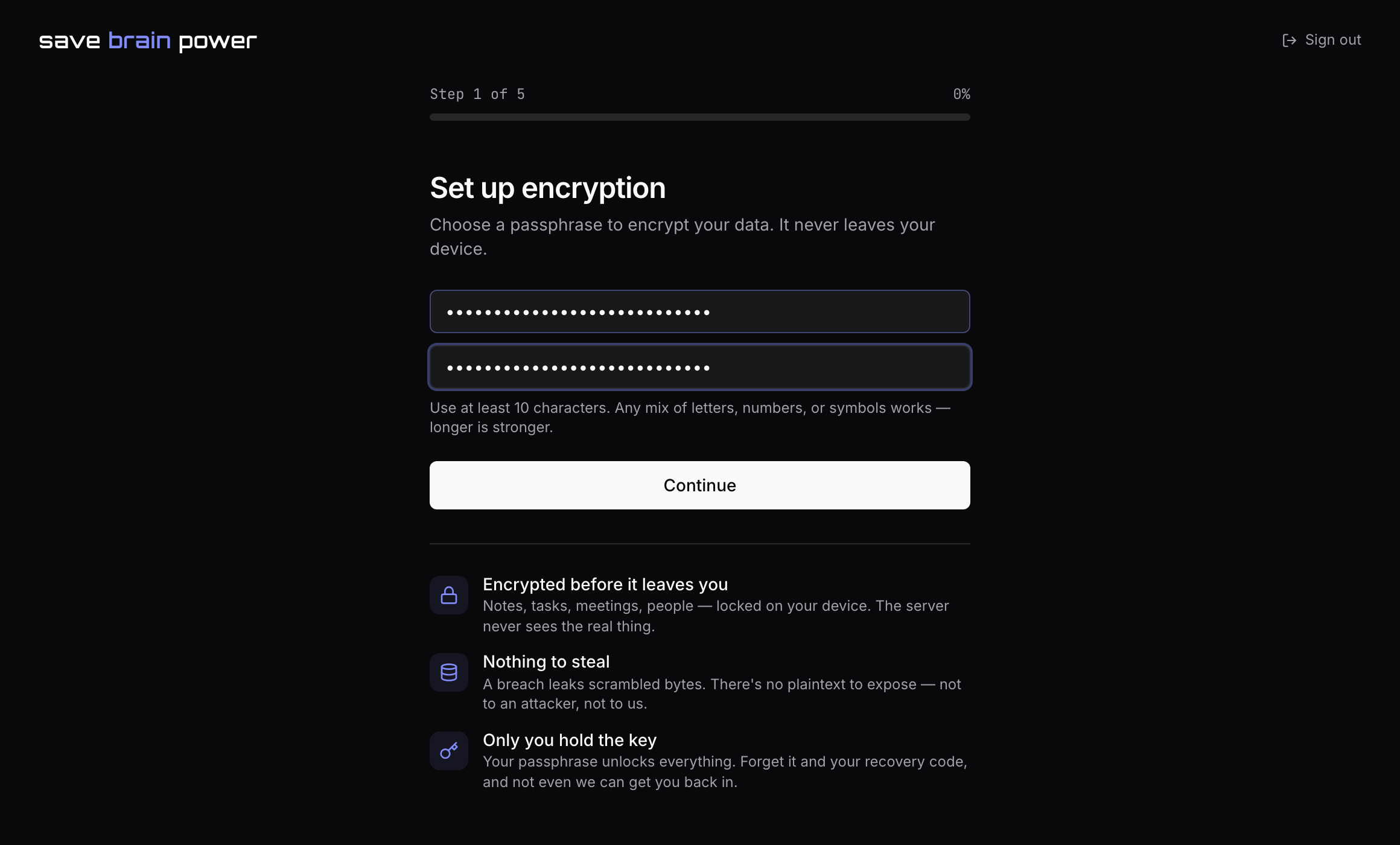
Next comes the screen that matters: Set up encryption. The passphrase you type here derives the key that encrypts every note, task title, and meeting you’ll ever write. It never leaves your device — we couldn’t read your data if we wanted to.
Use at least 10 characters. Any mix of letters, numbers, or symbols works — longer is stronger. A short sentence you’ll actually remember beats Tr0ub4dor&3.
3. Save your recovery code
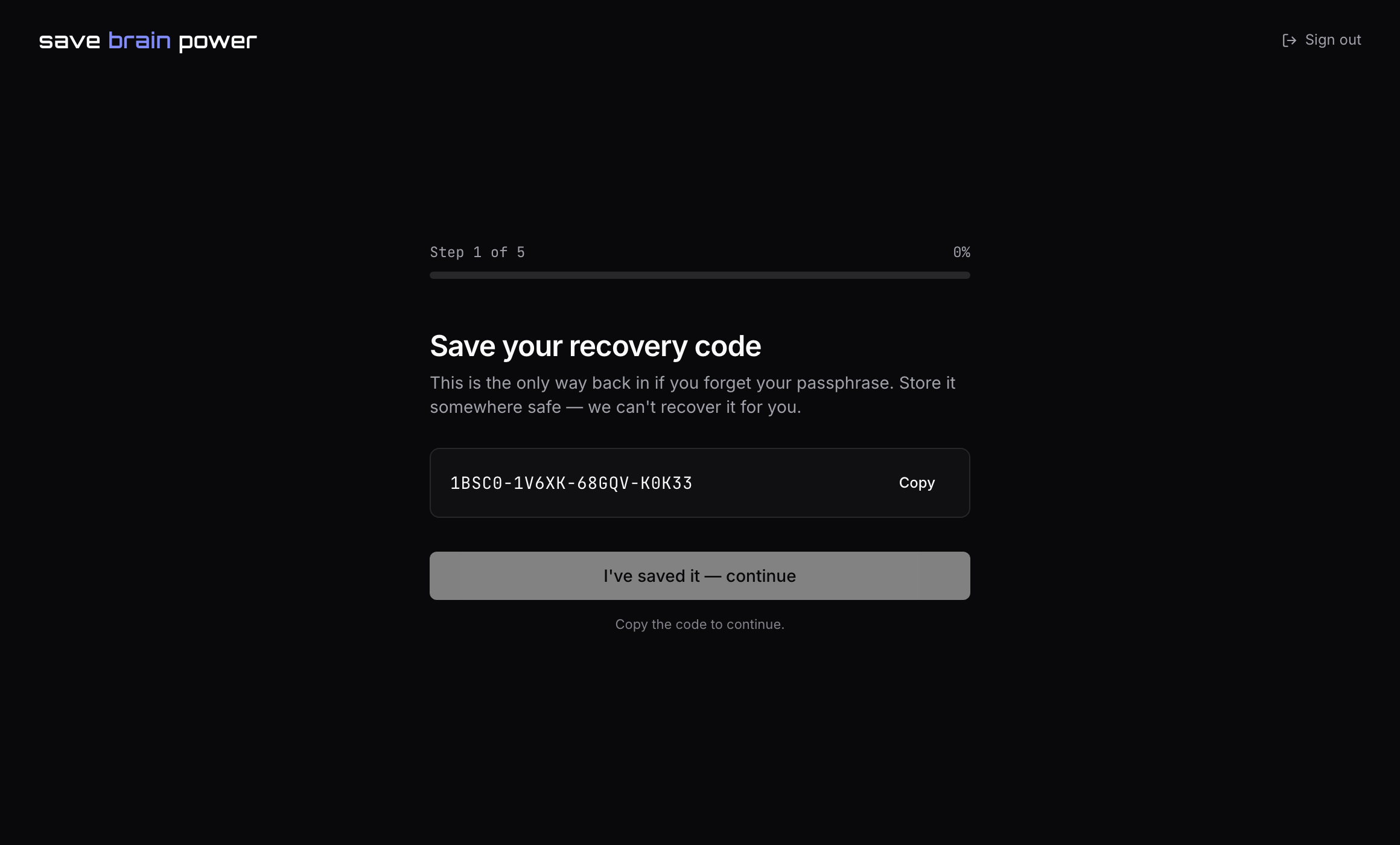
After the passphrase, the app shows a one-time recovery code. This is the only way back in if you ever forget your passphrase — zero-knowledge means exactly that: there is no “reset password” email, because we hold no key.
Hit Copy and put it somewhere that survives a lost laptop: a password manager, a printed note in a drawer. The I’ve saved it — continue button stays disabled until you’ve copied it, on purpose.
Tip: you can lock the app anytime with the lock icon in the top bar — useful when you step away from a shared screen. Unlocking takes your passphrase, not a new sign-in.
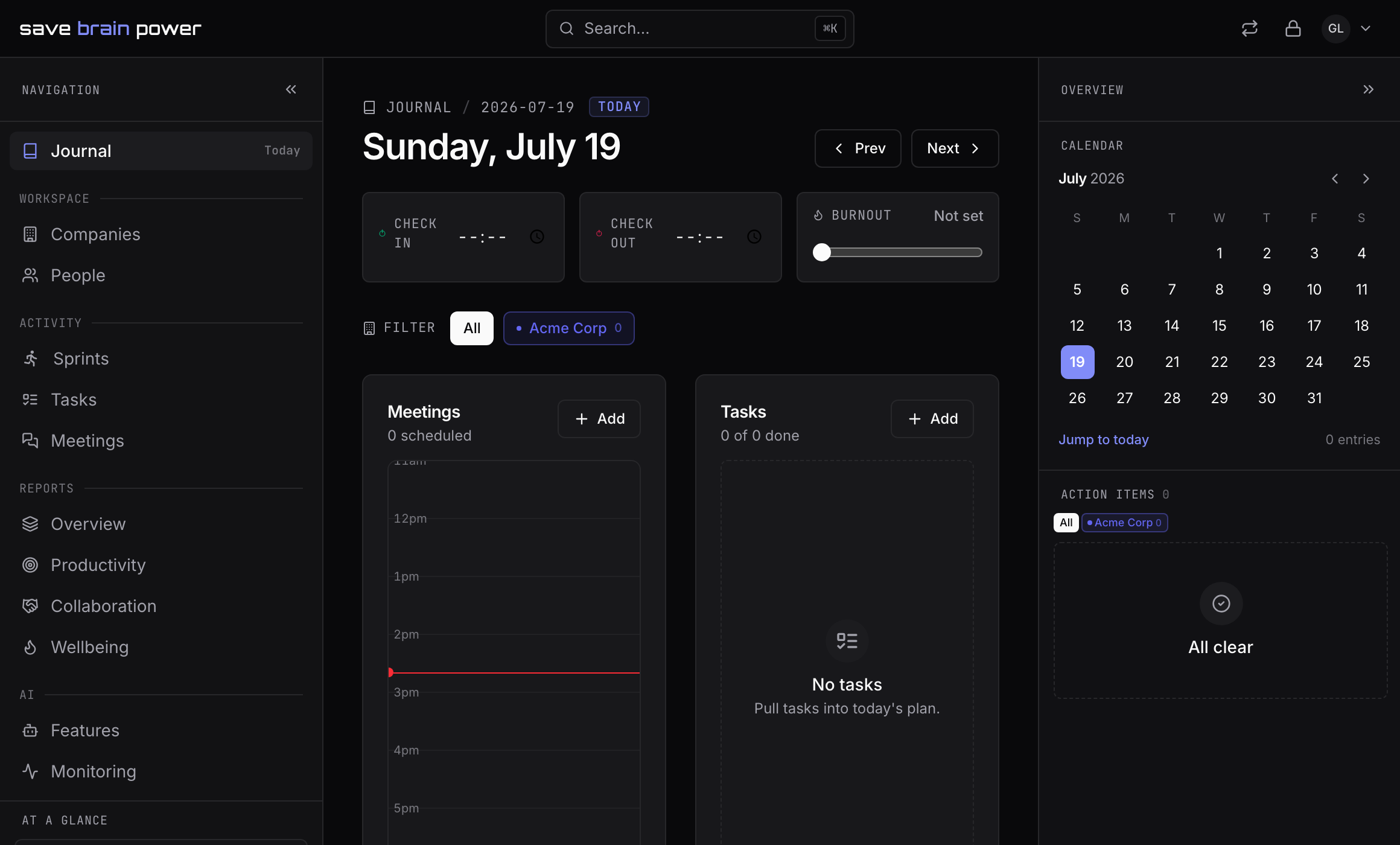
4. Finish the wizard and land on your journal
The rest of onboarding — proxy, AI keys, your first company, integrations — takes a few more clicks, and every step except the company can be skipped and revisited later. When you’re done you land on today’s journal: the page you’ll live on.
Next up: set up your companies — the workspaces everything else hangs off.